Hello everyone, I’m Thomas.
In game audio development, consulting documentation is “daily routine.” However, limited by inaccurate keyword matching or scattered information distribution, simple queries often turn into energy-draining “time black holes.”
Last year, I encountered RAG (Retrieval-Augmented Generation). I found it to be the perfect solution to documentation retrieval challenges, capable of precisely extracting information and curbing the hallucinations of large models.
In this article, taking “How to Efficiently Search Wwise Documentation” as an example, I will share my complete implementation strategy. I hope this helps everyone say goodbye to inefficient retrieval and save time for more important creative design work.
Terminology
The following abbreviations are used in this article:
- RAG: Retrieval-Augmented Generation
- LLM: Large Language Model
Pain Points of Knowledge Retrieval
In the process of game audio development, documentation is scattered everywhere:
- Wwise: Online documentation is affected by internet speed, offering an unstable experience; offline documentation is fragmented into multiple formats (PDF, HTML, CHM), requiring switching between different directories.
- Unity / Unreal: Online documentation experience is passable, but offline documentation is poor, essentially consisting of loose HTML pages that are troublesome to consult.
- REAPER: Online documentation only includes APIs (e.g., Official docs, X-Raym); offline documentation is excellent—a clear, structured, and timely updated professional document.
- Programming Language Docs: Experience depends on maintenance. Some are comprehensive and easy to retrieve, while others offer a poor experience.
After finding the document you need to consult, you still face the following annoyances:
- Low Retrieval Efficiency: Regardless of the document format, you have to repeat “Open Document → Search Keyword → No Match → Search Again.”
- Difficult Keyword Matching: Often, due to imprecise keywords or unfamiliarity with English terms, you get half the result with twice the effort.
- Disrupting Work Flow: Jumping repeatedly between multiple documents easily interrupts your work rhythm.
The Approach in the AI Era
Ask LLM?
Some people might ask the LLM directly, but limited by the model’s training data orientation and knowledge cutoff dates, not every question gets a satisfactory answer.
So, why not just upload all documents into the chat window? Doing so still has two problems:
- Performance Drop: Modern LLMs generally support long contexts, yet they are easily overwhelmed by extensive documents, leading to increased latency or hallucinations.
- Repetitive Labor: Even if uploading only a small amount of documents, the context length of each conversation is still limited. Reaching the limit requires starting a new conversation, which means repeating the document upload operation.
Time to Use RAG
This is when RAG (Retrieval-Augmented Generation) enters the scene. Its working principle can be simply summarized as:
- Build Knowledge Index: Compress and summarize documents, converting them into a knowledge graph. This exists independently of the dialogue window, so starting a new conversation does not require re-uploading files.
- Layered Retrieval: Through progressive disclosure, it precisely extracts relevant fragments, effectively solving the “needle in a haystack” problem and saving Tokens.
- Reduce Hallucinations: Strictly locking the model’s answers within user documents ensures answers are “evidence-based,” maximally curbing AI hallucinations.
It sounds perfect, but when searching “How to use RAG,” the solutions found are filled with obscure terms like “Environment Configuration,” “Access Model API,” and “Vector Database Deployment,” making it seem like a tool exclusively for advanced users.
But in reality, the golden rule for ordinary users using AI tools is: Embrace finished products polished by big companies. This allows you to avoid tedious work like deployment and operations, focusing on usage itself.
Based on this principle, I formally introduce the protagonist of this article, the learning notebook product developed by Google — NotebookLM.
Introducing NotebookLM
NotebookLM is a RAG notebook product launched by Google in 2023. As a member of the Google AI family, it inherits Gemini’s user experience design, with a clean interface and powerful functions, and almost all features are free to use.
At the time of writing this article, its internal models have been upgraded to Gemini 3 (Flash and Pro mixed, handling text) and Gemini 3 Pro Image (i.e., Nano Banana Pro, handling images and slides). The product’s underlying model capabilities are very robust.
Compared to other RAG solutions, NotebookLM has almost no rivals in performance and ease of use.
More importantly, it generates answers strictly based on documents provided by the user, effectively avoiding hallucination issues. In my half-year of using NotebookLM, it has never given imagined content detached from document sources, which makes me very reassured.
How to Ask a Good Question
Before looking at use cases, it is necessary to introduce how to ask questions. Often, the core reason for poor LLM results is the poor quality of the question itself.
I once read a sentence describing interpersonal communication: “Ambiguity is bullying to others.” This sentence profoundly reveals the status of context in communication.
This is especially important when interacting with an LLM. Before asking, you might want to ask yourself: Did I make the question clear? Is the background information provided sufficient? The more detailed the context, the more precise the answer you can get.
For example, asking about audio-visual desynchronization:
- Bad: “What to do if music sync is inaccurate?”
- Good: “I am playing an AkEvent via an AkAudioEvent track in an Unreal Level Sequence, but when the Sequence is relatively long and the scene is complex, occasional audio-visual desynchronization occurs. What are the solutions?”
The AI era has changed the way we acquire knowledge. Traditional search is using keywords to “salvage” answers, while asking AI is more like “summoning”—letting the answer actively emerge through semantic understanding and content generation. The answer is there, as long as you ask the right question.
Use Cases
Below, through several practical problems in Wwise development, I will demonstrate the answer quality of NotebookLM.
The cases cover scenarios such as concept differentiation, performance optimization, expression generation, and SDK understanding. It can be seen that the answers provided by NotebookLM excel in both accuracy and readability.
Case 1: Difference Between State and Switch
Question: What is the main difference between Switch and State? What are their respective application scenarios? Answer:
The main difference between a Switch and a State lies in their scope and their intended function within the Wwise sound engine.

1. Main Differences
Scope (Global vs. Local):
• States are Global: A State Group has only one current State at any given time, which is shared between all game objects. When a State changes, it applies globally to the entire game.
• Switches are Per Game Object: A Switch Group can have a different value for every game object in the game. For example, at a given time, one character can be on "Grass" while another is on "Concrete".
Function (Properties vs. Content):
• States (Mixer Snapshots): States are primarily used to define different "mixer snapshots" or global offsets for audio properties. They are generally used to modify properties like Volume, Pitch, and Low-Pass Filter for sounds that are already playing to match environmental changes.
• Switches (Alternatives): Switches represent different alternatives for a specific game element. They are primarily used to drive Switch Containers to select entirely different media or objects to play based on the current condition.

2. State Application Scenarios
States are best used for changes in the physical or environmental conditions of the game that should affect multiple sounds simultaneously.
• Environmental Changes: Simulating the sound treatment when a player goes underwater. A "Player_Environment" State Group could change from "Ground" to "Underwater." This State change would globally modify the volume and Low-Pass Filter of gunfire, explosions, and music to sound muffled.
• Game Flow/Menus: Handling pause menus. A "Menu" State could lower the volume of the gameplay bus and raise the volume of the music bus.
• Player Status: Simulating a temporary loss of hearing (e.g., "Stunned" vs. "Normal") where the game audio is muffled or altered globally.
• Music Systems: Interactive music often uses States to switch between different musical moods (e.g., "Exploration" vs. "Fight").

3. Switch Application Scenarios
Switches are best used when a game element has specific alternatives that require distinct audio assets.
• Footsteps (Surface Types): This is the most common use case. A "Ground_Material" Switch Group could include Switches for Concrete, Grass, Metal, and Snow. When a character walks, the specific game object (the character) triggers the Switch corresponding to the surface they are currently on, ensuring the correct sample plays.
• Weapons: A Switch Group can manage different firing sounds for a variety of weapons (e.g., Laser, Shotgun, Sword).
• Vehicle Sounds: Switching between different engine sounds based on the vehicle type or status.
• Character Dialogue: Managing dialogue variations, such as ensuring a character speaks lines using the correct "Male" or "Female" voice recordings.

Summary
If the change applies to all game objects (global) and involves modifying properties (mixing), use a State. If the change applies to a specific game object and involves swapping media (selecting different sounds), use a Switch.
Case 2: Performance Optimization Ideas When Generating SoundBanks in Wwise
Question: I want to optimize the performance of Wwise Console when generating SoundBanks. In which steps can it be optimized by upgrading hardware? Answer:
Based on the provided sources, upgrading hardware can optimize Wwise Console performance during SoundBank generation in the following specific steps:
1. Audio File Conversion (Processing Cores) This is often the most time-consuming step of SoundBank generation. Wwise automatically utilizes multi-core processing to speed up audio file conversion.
• Optimization: Upgrading to a CPU with more cores will directly reduce the time required for this step. Wwise uses each processing core to convert files in parallel, and the progress is visualized by secondary progress bars in the generation dialog (or command line equivalent).
2. File I/O and Disk Access (Storage Speed) SoundBank generation involves reading original assets, writing converted files to the cache, and writing final banks to disk.
• Optimization: Using an SSD (Solid State Drive) significantly reduces the time required for these operations, particularly when importing or processing tens of thousands of media files. It is also recommended to exit disk-intensive applications (like virus scanners or source control synchronization) during this process.
3. Memory Usage (RAM) While specific RAM upgrade thresholds for generation speed are not explicitly detailed as a primary bottleneck for speed (unlike CPU cores), sufficient memory is required to handle large projects and avoid swapping to disk.
• Optimization: Ensuring your system meets or exceeds the recommended memory requirements (4 GB is the minimum) prevents bottlenecks. However, for SoundBank generation specifically, CPU core count and disk speed are the more direct hardware levers for performance speed.
4. Networking (Distributed Generation) If you are using a setup where SoundBank generation is offloaded or distributed (e.g., using a dedicated server), network hardware can play a role.
• Optimization: While the sources focus on software configuration, a faster network connection would improve the transfer speeds if you are pushing generated SoundBanks to a server or pulling sources from a network drive.

Summary
• Best Upgrade: High core-count CPU (for parallel audio conversion).
• Second Best: Fast SSD (for faster reading/writing of assets and banks).
• Baseline: Sufficient RAM (to prevent system slowdowns).
Case 3: Generating Accurate WAQL
Question: Generate a WAQL query statement to query all Actions of type Stop under \\Events\\Awesome.
Answer:
Based on the Wwise Authoring Query Language (WAQL) syntax and Wwise object properties, here is the query statement to find all Stop actions located under the path \Events\Awesome.
$ from object "\Events\Awesome" select descendants where type = "Action" and @ActionType = 2

Explanation of the Query:
1. $ from object "\Events\Awesome": Sets the starting point of the query to the specific object or folder located at \Events\Awesome in the project hierarchy.
2. select descendants: Retrieves all objects contained recursively within that path (Events, Actions, etc.).
3. where type = "Action": Filters the results to keep only objects of the type "Action".
4. and @ActionType = 2: Filters the actions to include only those where the ActionType property is 2, which corresponds to Stop.
    ◦ Note: 1 is Play, 2 is Stop, 3 is Stop All, and 4 is Pause.
Case 4: Querying Structure Usage
Question: What is the usage of the AkAudioObject structure, and what members does it contain?
Answer:
The AkAudioObject structure encapsulates the metadata associated with an individual audio signal as it travels through the Wwise sound engine's object-based audio pipeline. While the actual audio signal is contained in a separate AkAudioBuffer, the AkAudioObject holds the descriptive data required for 3D rendering and processing.

Usage The AkAudioObject is primarily used in the following contexts:
• Object-Based Pipeline: It allows Wwise to retain individual audio buffers and their metadata throughout the mixing graph, rather than mixing them immediately into a single buffer. This enables Audio Object busses to support a dynamic number of objects.
• Object Processor Plug-ins: It is passed to the Execute function of Object Processor plug-ins (both in-place and out-of-place) wrapped within an AkAudioObjects container. This allows plug-ins to access and modify distinct audio signals and their associated metadata, such as 3D position.
• System Audio Objects: If eligible, Audio Objects can be promoted to System Audio Objects, where their buffers and metadata are delivered to a platform's 3D Audio endpoint for spatialized rendering.

Members The AkAudioObject structure contains members categorized by identification, positioning, gain, and custom metadata:
• Identification:
    ◦ key (AkAudioObjectID): A unique ID local to a given bus. It is the preferred method for identifying objects across frames.
    ◦ instigatorID (AkPipelineID): The profiling ID of the node (typically a voice or Actor-Mixer instance) from which the object originated.
    ◦ objectName (String): A name string used for profiling. Out-of-place object processors can set this using SetName to identify output objects.
• Positioning and Gain:
    ◦ positioning (AkPositioningData): Contains data for deferred 3D rendering, including 3D position, orientation, and behavioral settings (such as speaker panning types).
    ◦ cumulativeGain (AkRamp): The cumulative ramping gain to apply when the object is eventually mixed down to a speaker bed or final endpoint.
• Metadata and Priority:
    ◦ arCustomMetadata (ArrayCustomMetadata): An array containing custom metadata plug-ins gathered from the instigating Sound and any busses the object has visited.
    ◦ priority (AkPriority): The playback priority of the object. This is used by endpoints to determine if the object should be rendered using hardware object functionality or downmixed to a lower-resolution 3D bed.
Viewing Source Grounding
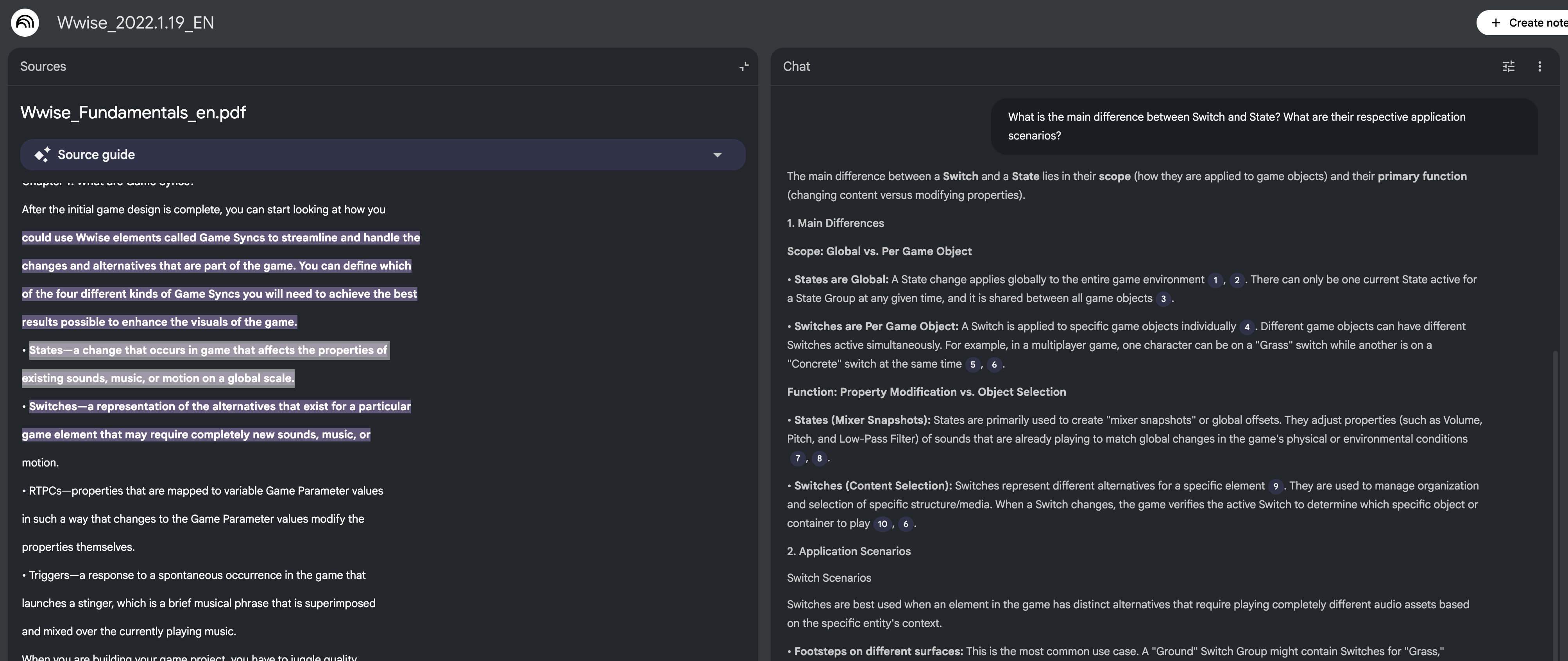
Each answer in NotebookLM is marked with a Source Grounding citation. Clicking the “citation number” in the answer allows you to trace back to the original text in the source document.
Taking Case 1 as an example, clicking the digital citation 2 next to States are Global: A State change applies globally to the entire game environment in the answer jumps to the source document on the left. You can see that this conclusion comes from this definition in Wwise_Fundamentals_en.pdf:
States—a change that occurs in game that affects the properties of existing sounds, music, or motion on a global scale.
Building the Knowledge Base
Method 1: Using Pre-split Documents to Create a Knowledge Base
To enable NotebookLM to understand Wwise documentation, two preprocessing steps are needed for the documents:
- Format Conversion: NotebookLM does not support CHM, so it needs to be converted to PDF format.
- Document Splitting: Control the Token count of each source file to ensure RAG performance.
For everyone’s convenience, I have preprocessed the latest minor version documentation for Wwise versions 2019 - 2024. The compressed package includes:
- Bilingual Documents: Each version has both Chinese and English sets of documents for everyone to choose according to language preference.
- Document Scope:
- Includes Wwise Fundamentals, Wwise Help, Wwise SDK Windows, Wwise Unity Integration Help, and Wwise UE Integration (five documents).
- Versions are 2019.1.11, 2019.2.15, 2021.1.14, 2022.1.19, 2023.1.18, 2024.1.10, 2025.1.4.
- Download Link: https://drive.google.com/file/d/1GqPieIqQLZmPVuU-nA_zxRMnFVZcwd9a
Here is how to create a knowledge base (Notebook):
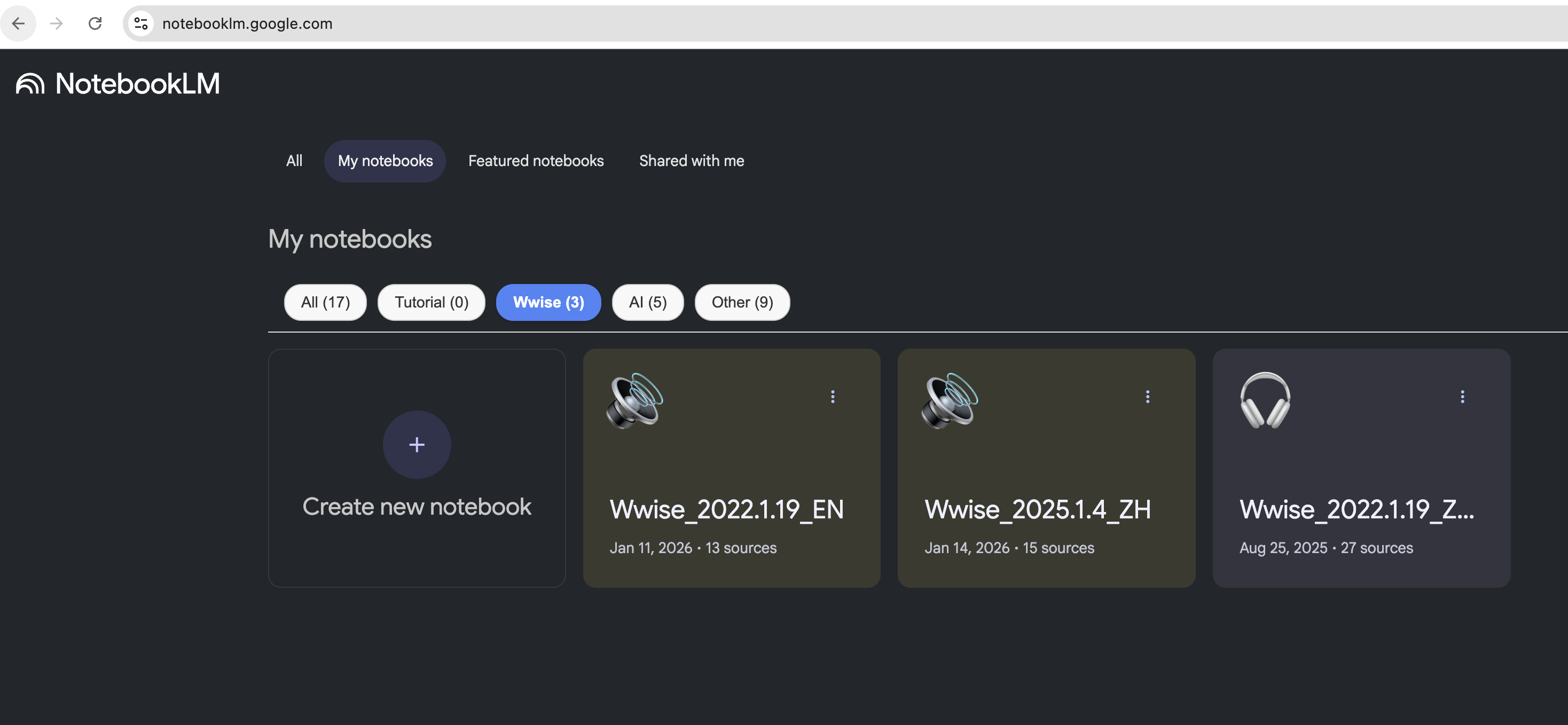
- The method is very simple, just open the NotebookLM homepage https://notebooklm.google.com
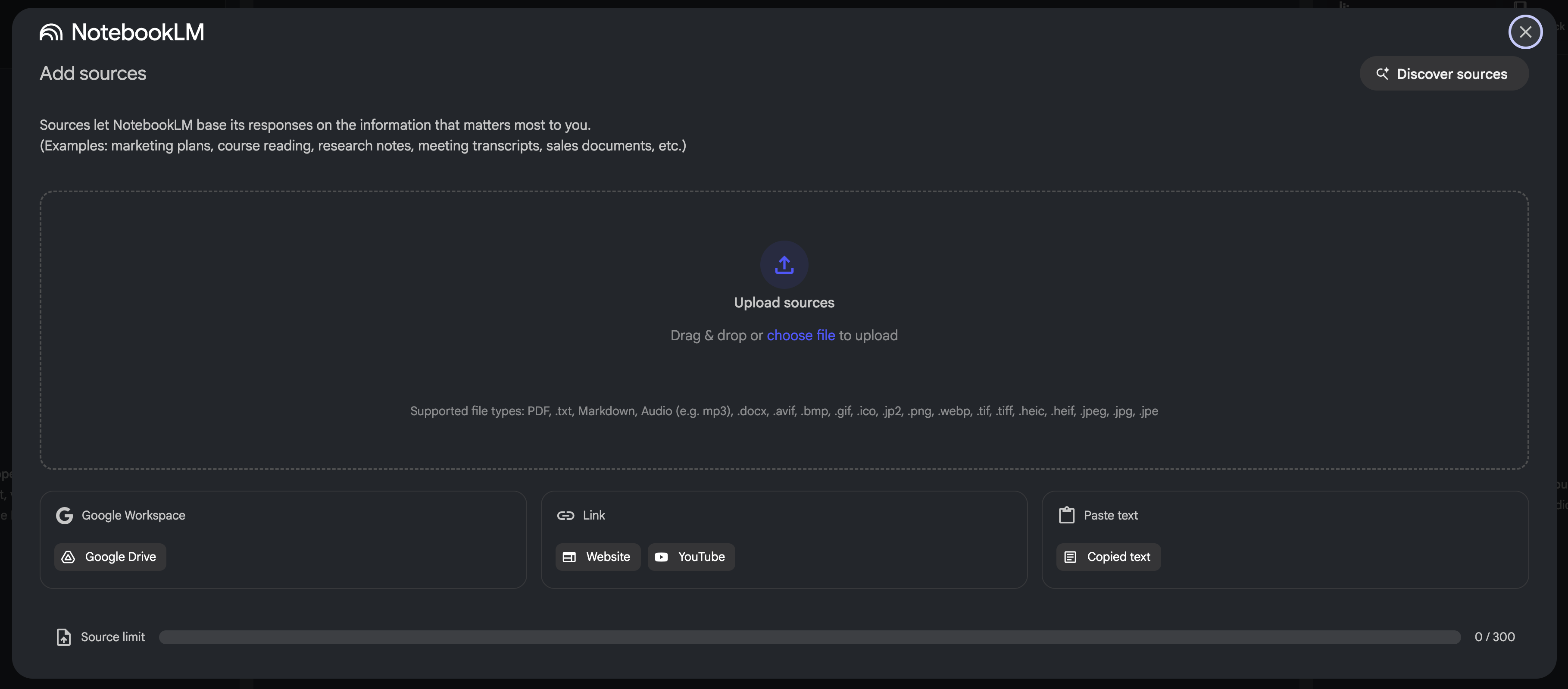
- Click New Notebook. In the popup window, drag and drop the required documents to upload to the notebook. Here, you can filter documents based on actual needs (for example, in integration documentation, choose the engine documentation used by the current project).
- Wait a moment. After the document analysis is finished, you can ask questions freely.
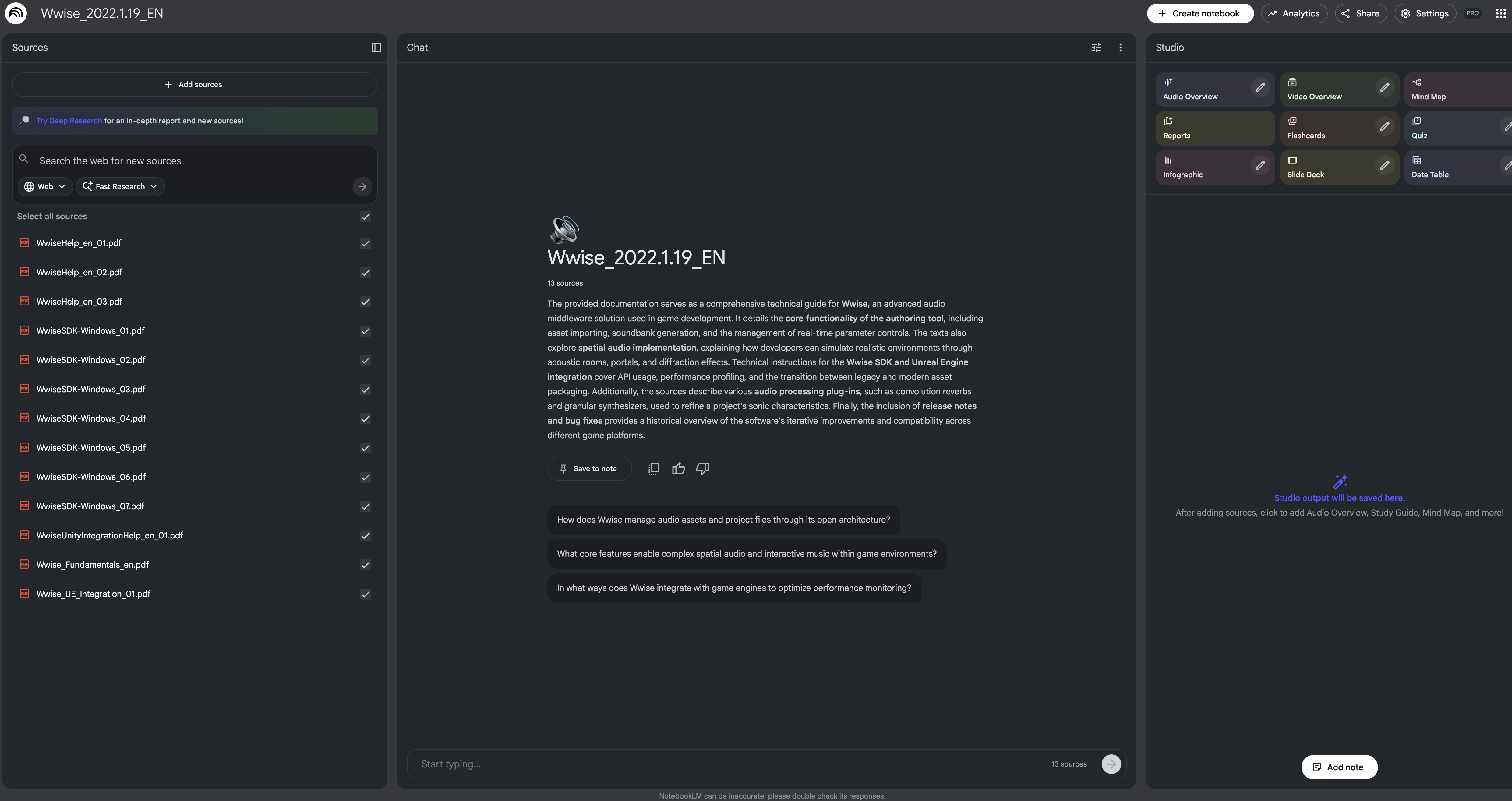
Method 2: Processing Documents Yourself to Create a Knowledge Base
If the Wwise version you are using is not in the compressed package, or you want to build knowledge bases for other fields, you can use the open-source tool DocWeaver developed by me to process documents yourself.
DocWeaver provides the following functions:
- Automatically estimates the number of splits based on Token count.
- Converts formats like CHM/HTML to PDF. Since existing CHM to PDF solutions could not perfectly convert Wwise CHM documents, I rewrote a conversion algorithm to adapt to this requirement.
- Intelligently splits files according to set size.
- Supports command-line batch processing; limited by space, it is not detailed in this article. You can view the usage in the README after visiting the GitHub repository.
Below, I will create a Wwise notebook from scratch, assuming that the required documentation has been downloaded in the Audiokinetic Launcher.
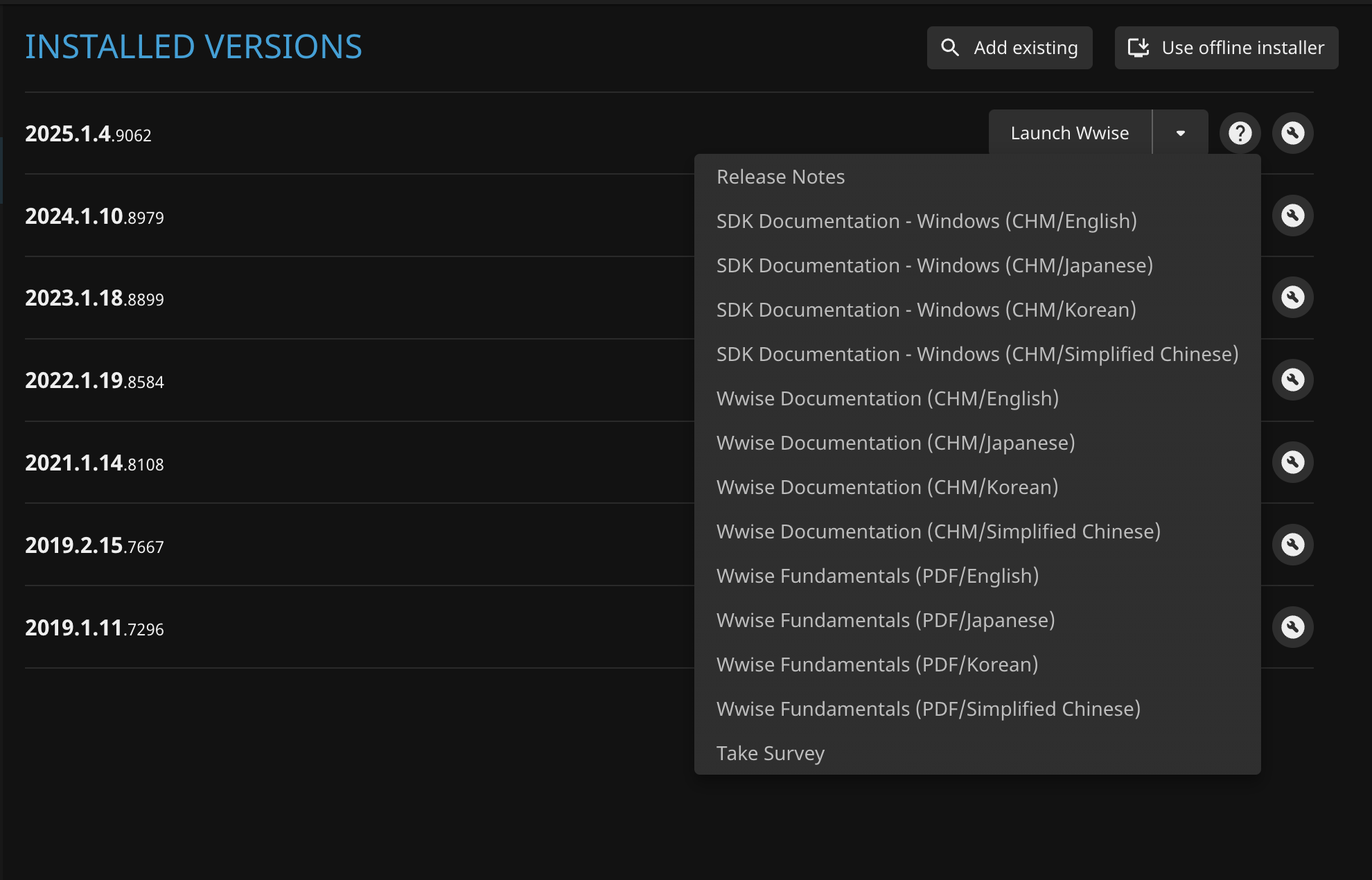
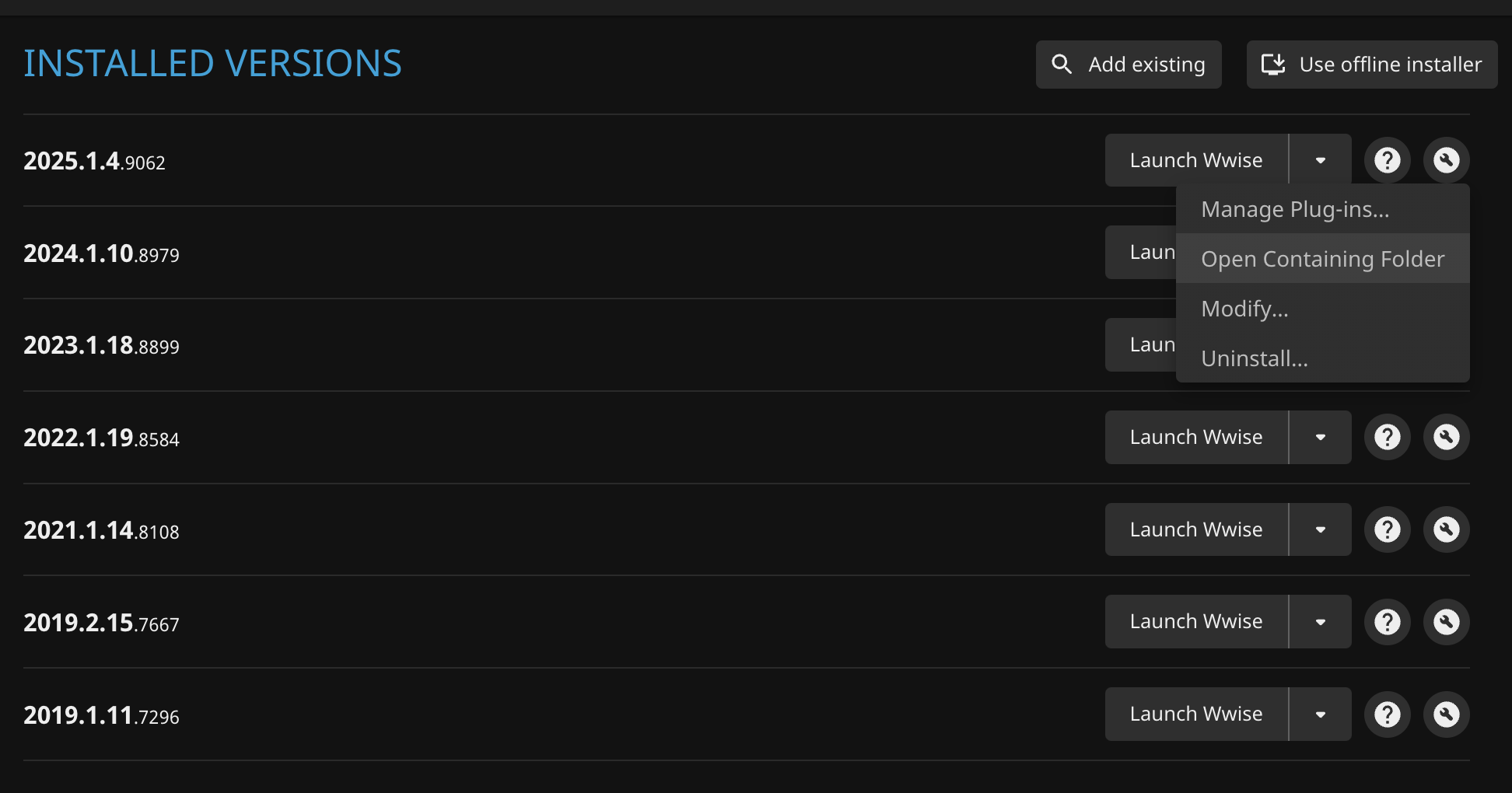
- Find the required documentation. In Audiokinetic Launcher, you can click the question mark to the right of the version to open the documentation, or click the “wrench icon” on the right and click Open Containing Folder in the popup menu. Most documents can be found in the Wwise installation directory.
- Open the DocWeaver GitHub Release page, find the required version (
arm64is the version for macOS ARM architecture,x86_64is the version for Windows X86 64-bit architecture), download and unzip. Download Link: https://github.com/zcyh147/DocWeaver/releases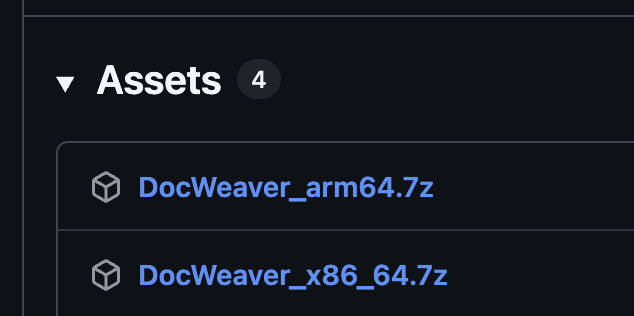
- After opening the tool, drag the files that need processing into the
Drag & Droparea of the tool. - Wait a moment and check the estimated number of split files.
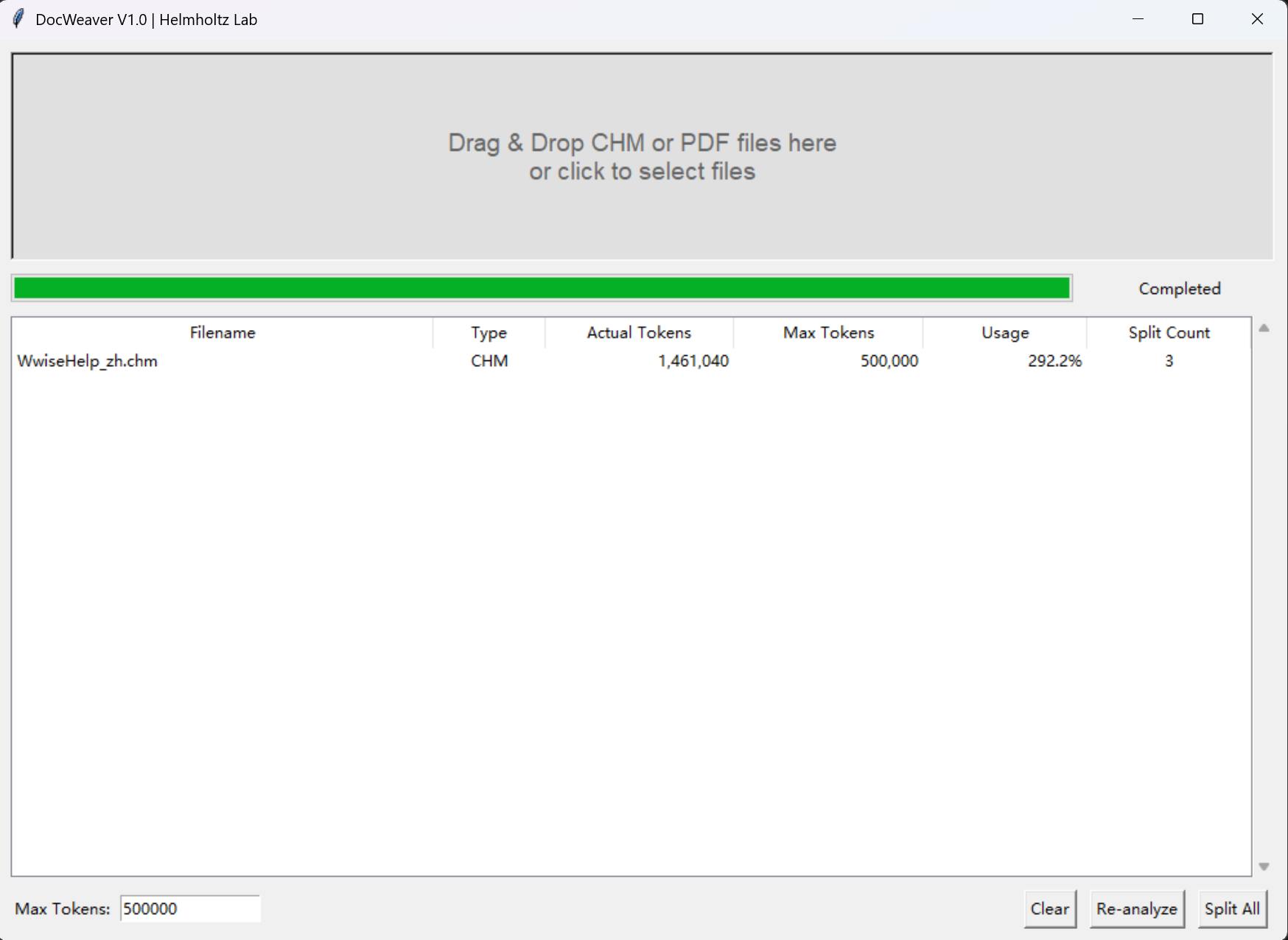
- Click
Split All. In the popup window, set the output directory to start processing. After the work is finished, the output files will be named in the format<Source_Filename>_<Number_Suffix>.pdf(if Max Tokens is not reached, a copy will be made to the output directory as is), then follow Method 1 to create the notebook.
Supplementary Notes
Pros and Cons of NotebookLM
Every product has pros and cons, and NotebookLM is no exception.
Pros:
- Free users can enjoy most functions, for example:
- Can create 100 notebooks, 50 sources per notebook; can converse 50 times per day, and generate 3 audio overviews.
- Can use advanced functions like Slides generation, Deep Research, etc.
- Cross-platform seamless experience, supports web and mobile App.
- Maintained by a big company, extremely reliable.
- Google AI Pro paid membership (20 USD/month) has extremely high cost-performance ratio, allowing simultaneous use of the Google AI family bucket including Gemini, NotebookLM, Slides, and Opal.
Cons:
- For heavy users, 50 free queries per day are obviously not enough.
- Data is stored on Google servers; private data is difficult to keep confidential.
- There is a limit on the total Token count for each source in the notebook. If the file has many words, manual splitting is needed to ensure RAG performance.
Why Use PDF as Notebook Source Format
The reason for choosing PDF instead of TXT is mainly to retain image information:
- NotebookLM already supports using handwritten file images as sources and can recognize notes and formulas within them, indicating that image understanding capabilities are gradually being released.
- I predict it will soon fully open image understanding functions, so retaining images through PDF has forward-looking significance—when this feature goes online, there is no need to remake documents to ask questions about images.
- The outline of the PDF serves as the structure tree of the document, providing more precise context positioning during the splitting and retrieval process of RAG.
Why the Default Token Limit for a Single Source in DocWeaver is 500,000
NotebookLM has a limit on the Token count for each source file. Tests show that a single source around 800,000 Tokens can still maintain good retrieval accuracy.
The reason for setting the default Tokens count to 500,000 in DocWeaver is that smaller files can obtain faster retrieval speeds and more stable answer quality.
For a Wwise knowledge base notebook, a dozen sources can cover all documents, far from reaching the notebook’s source count limit, so pursuing the Token limit of a single source has no practical significance.
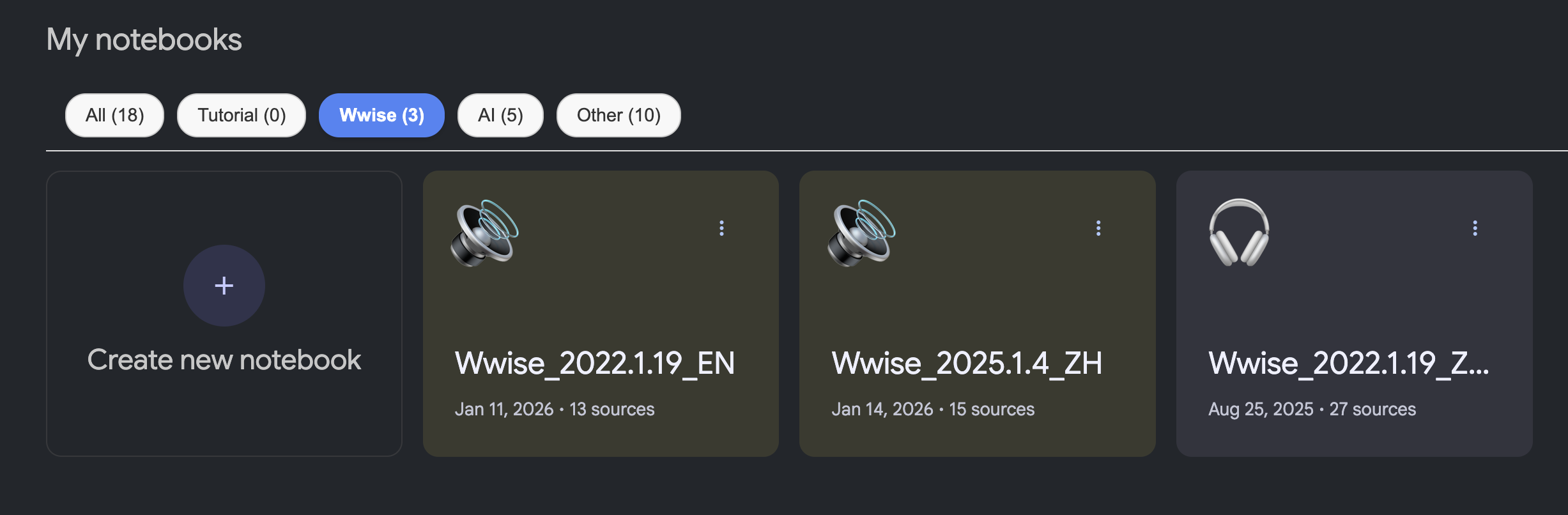
Why My NotebookLM Has Tags
NotebookLM has a small drawback: it does not support folder and tag functions. When the number of notebooks increases, management becomes troublesome.
Fortunately, developers on GitHub have provided a solution—the NotebookLM Categorizer plugin. After installation, a custom tag column can be added to the webpage, making notebook management more convenient.
Download Link: https://github.com/muharamdani/notebooklm-categorizer
Extended Use Cases
Generating Audio Overview, Video Overview, Presentations, etc.
NotebookLM provides rich content generation functions, which can convert notebooks into:
- Audio Overview: Automatically generated podcast-style conversation summary.
- Presentations: One-click generation of structured slides.
- Study Cards: Q&A style knowledge point sorting.
- Mind Maps: Visualized knowledge structure.
These functions are very practical when learning new knowledge. Personalized customization can also be done through custom Prompt during generation. Regarding detailed usage and best practices, there are already a large number of excellent tutorials on the internet, so I won’t repeat them here.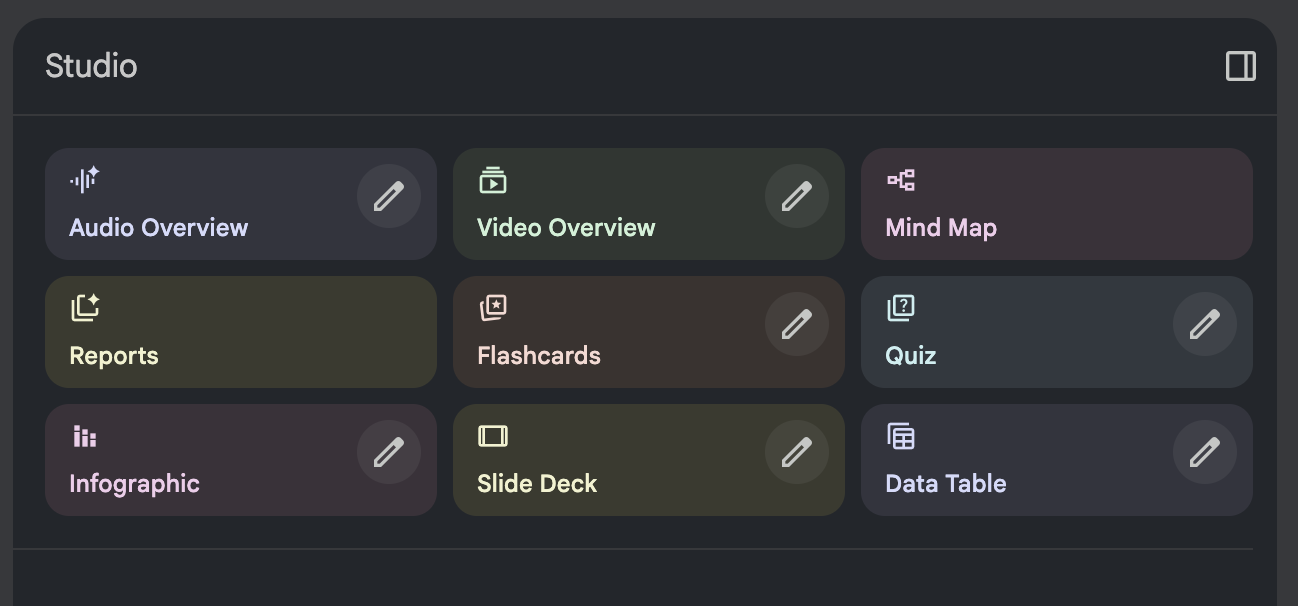
Combined Use with Gemini
In Gemini’s Q&A box, click +, select NotebookLM in the popup menu, and you can let the notebook participate in the conversation. The NotebookLM notebook will serve as Gemini’s external knowledge base, exerting the function of Agentic RAG.
At this time, Gemini can retrieve answers in NotebookLM and public information sources simultaneously, and in some use cases, can output more comprehensive answers.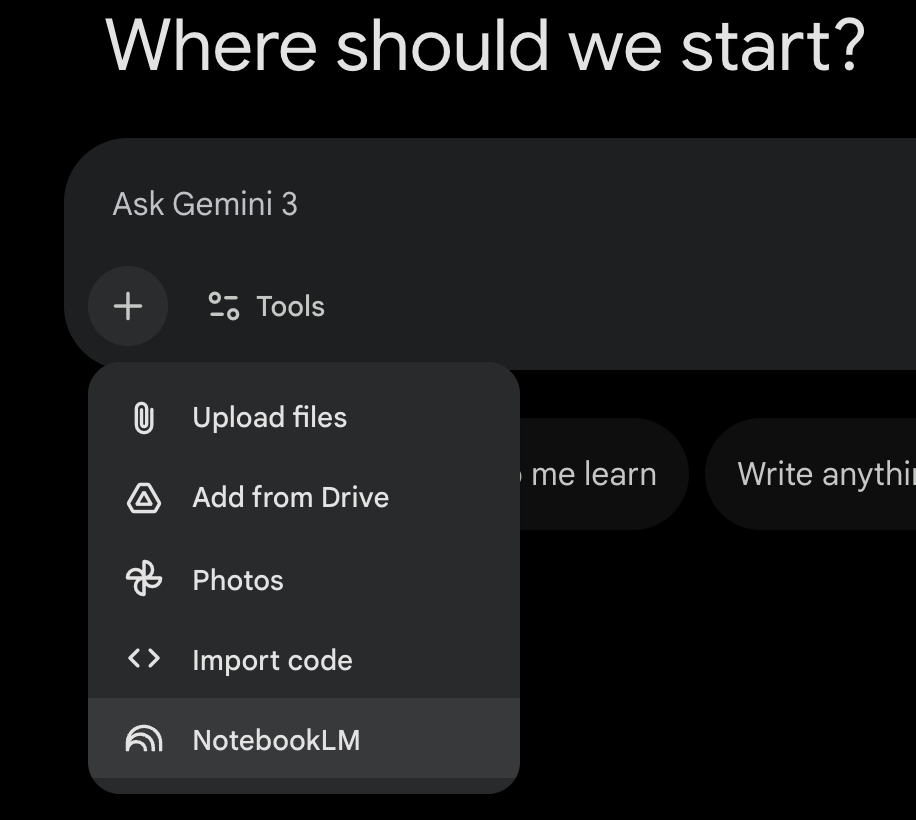
Adding More Data to Build a More Valuable Knowledge Base
Besides official documents, any material (e.g., blog posts, speech records, YouTube videos) can be used as query sources for NotebookLM. Making reasonable use of this feature can build a richer and more targeted knowledge base.
It needs to be reminded that when adding content, please ensure the source is legal and compliant, respect intellectual property rights, and avoid legal risks.
Summary
In this article, I introduced how to use Google NotebookLM to build a Q&A knowledge base for game audio development, solving the pain point of inefficient documentation retrieval through RAG technology.
From pain point analysis, tool selection to actual operation, I shared a complete implementation strategy:
- Using preprocessed Wwise documents can quickly create a knowledge base.
- With the help of the DocWeaver tool, you can process documents of other versions or fields yourself.
- Combined with NotebookLM’s multimedia generation and Gemini integration functions, learning efficiency can be further improved.
Special Thanks
Thanks to the Audiokinetic team for their meticulous maintenance of Wwise technical documentation over the years.
It is precisely their persistent pursuit of document quality and continuous investment that provided developers with such perfect learning resources, giving this knowledge base scheme a solid foundation.
Copyright Notice
The Wwise document materials provided in this article all come from Audiokinetic officials. The copyright belongs to Audiokinetic, and they are for learning use only.